
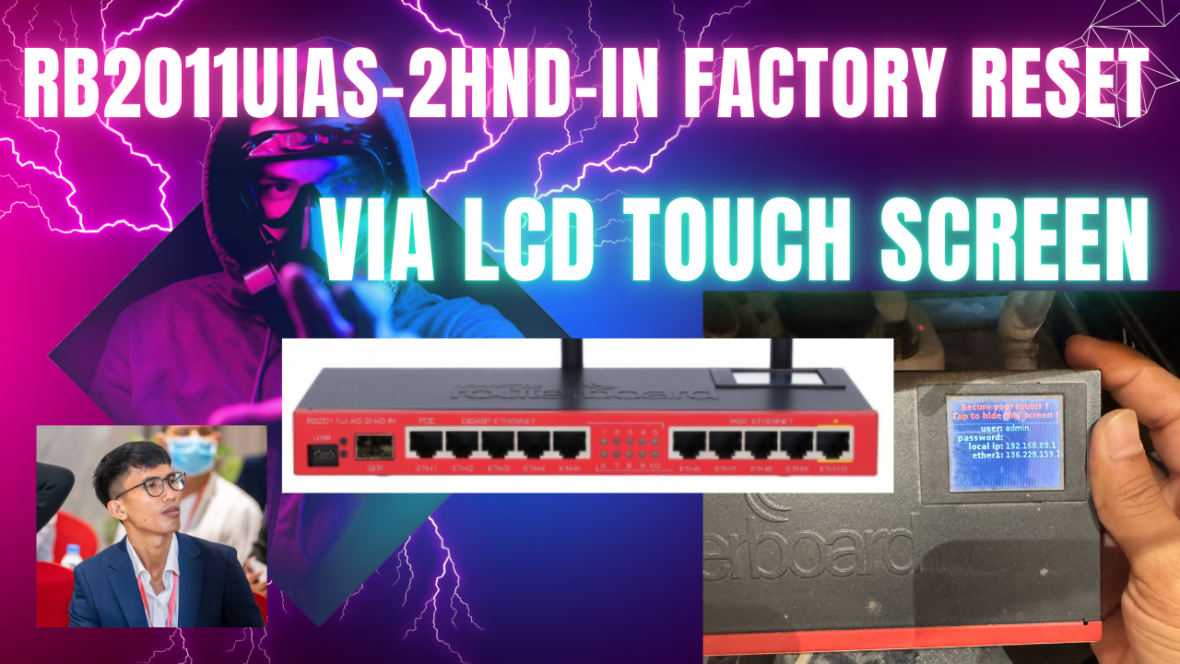
The MikroTik RB2011UiAS-2HnD-IN is a classic powerhouse in the world of networking routers. Even in 2026, this model remains popular among home labs, small offices, and enthusiasts due to its versatile ports, built-in wireless access point, and the unique touch screen LCD panel that allows direct hardware interaction. One of the most useful features of this LCD is the ability to perform a factory reset without needing access to Winbox, web interface, or a physical reset button—perfect for situations where you’ve forgotten passwords or locked yourself out of the configuration.
In this guide, we’ll walk through the step-by-step process of factory resetting your RB2011UiAS-2HnD-IN using the touch screen. We’ll also cover a quick overview of the router’s specifications and why this method stands out.
Quick Overview of the MikroTik RB2011UiAS-2HnD-IN
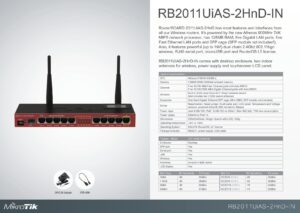
Released over a decade ago, the RB2011 series (particularly the UiAS-2HnD-IN variant) packs impressive features into a compact desktop enclosure:
- CPU: Atheros AR9344 600MHz single-core processor
- RAM: 128MB
- Storage: 128MB NAND
- Ports: 5x Gigabit Ethernet, 5x Fast Ethernet (10/100), 1x SFP cage for fiber connectivity, USB port, RJ45 serial console
- Wireless: Built-in dual-chain 2.4GHz 802.11b/g/n access point with up to 1000mW transmit power (includes two 4dBi swivel antennas)
- Other Features: Passive PoE output on Ether10, touch screen LCD panel, RouterOS Level 5 license
- Power: Standard DC jack or PoE input
This router runs MikroTik’s powerful RouterOS, supporting advanced features like firewalls, VPNs, hotspots, load balancing, and more. While newer ARM-based models have taken over for high-speed internet, the RB2011UiAS-2HnD-IN is still reliable for sub-Gigabit setups and complex routing scenarios.
Why Use the LCD Touch Screen for Factory Reset?
Most MikroTik routers require holding a physical reset button during boot, but the RB2011UiAS-2HnD-IN’s built-in touch screen offers a more user-friendly alternative. This method is especially handy if:
- You’re locked out due to forgotten credentials.
- The reset button is hard to access.
- You want to avoid potential risks with jumper resets or Netinstall.
Warning: A factory reset will erase all configurations, returning the router to default settings (default IP: 192.168.88.1, username: admin, no password). Back up your config first if possible!
Step-by-Step Guide: Factory Reset via Touch Screen LCD
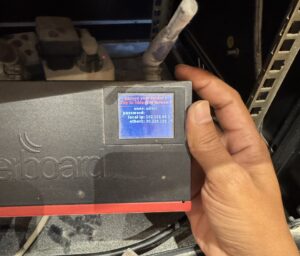
- Power on the Router Ensure the device is powered and fully booted. The LCD should display basic stats like uptime, IP addresses, or interface info.
- Access the LCD Menu Touch the screen to wake it if the backlight is off. Swipe or tap to navigate through the menus. (The touch interface is resistive, so firm taps work best.)
- Navigate to the Reset Option
- Scroll through the pages until you find the System or Reset Configuration menu.
- Select Reset Configuration
- Enter the PIN You’ll be prompted for a PIN code. Default PIN: 1234 Enter it using the on-screen keypad.
- Confirm the Reset
- Choose whether to keep default configuration (usually “No Default Config” for a full wipe).
- Confirm the action.
- The router will reboot and apply factory defaults.
- Post-Reset Setup After reboot, connect to Ether1 (default IP: 192.168.88.1). Use Winbox or web browser to log in as admin with a blank password. Set a new password immediately!
If the touch screen is unresponsive, fall back to the hardware reset button (small hole on the case—hold with a paperclip during power-on) or Netinstall for recovery.
Final Thoughts
The MikroTik RB2011UiAS-2HnD-IN’s touch screen LCD is a standout feature that makes management intuitive, even without a computer. This factory reset method saves time and frustration for many users. If you’re still rocking this reliable router in 2026, it’s a testament to MikroTik’s durable design!
Check out my related YouTube tutorial for a video walkthrough: [Link to your video].
Have questions or tips for the RB2011 series? Drop a comment below!
Tags: MikroTik, RB2011UiAS-2HnD-IN, Factory Reset, RouterOS, Touch Screen LCD, Networking Tutorial


